LibreDB Studio
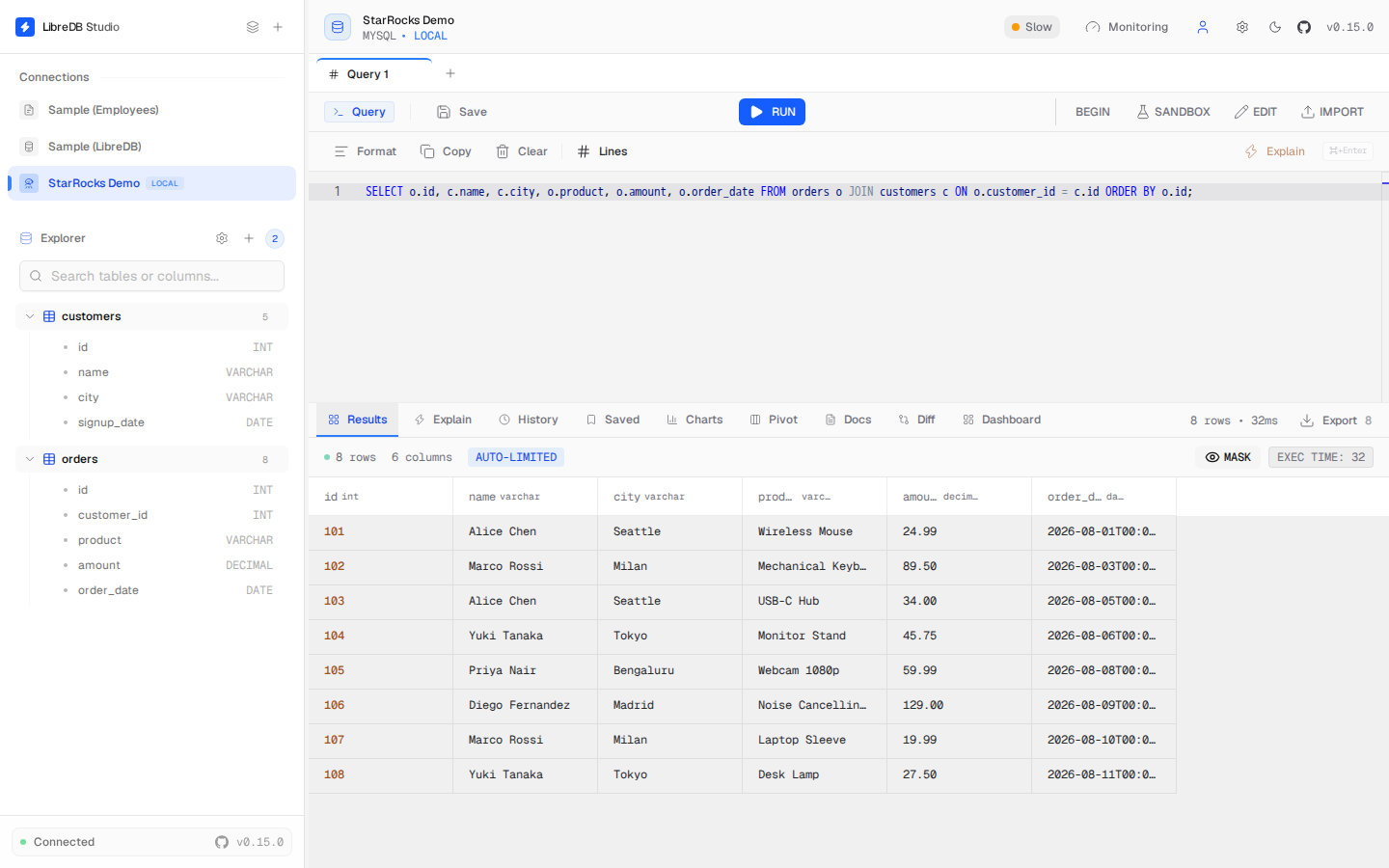
LibreDB Studio is an open source (MIT licensed) SQL IDE that runs in a browser rather than installing as a desktop application. It ships as a Docker image, a Helm chart, or an npm package, and connects to StarRocks over the MySQL wire protocol using its MySQL driver.
Prerequisites
- A running StarRocks cluster reachable from wherever LibreDB Studio runs, and its FE query port
(MySQL protocol, default
9030). - LibreDB Studio itself. Run it with Docker:
docker run -p 3000:3000 ghcr.io/libredb/libredb-studio:latest
On first run it prints a generated admin email and password to the container logs
(docker logs <container>); sign in with those. A Helm chart and an npm package
(npx @libredb/studio) are also available; see the
LibreDB Studio repository for details.
If StarRocks also runs in Docker, put both containers on the same Docker network and connect using
the StarRocks container's name rather than 127.0.0.1 or localhost. On Docker's default
network a container cannot reach the host's published ports by loopback address, and the two
containers cannot resolve each other by name unless they share a network:
docker network create starrocks-net
docker run --name starrocks --network starrocks-net -p 9030:9030 -p 8030:8030 \
  starrocks/allin1-ubuntu:latest
docker run --network starrocks-net -p 3000:3000 ghcr.io/libredb/libredb-studio:latest
With this setup, use starrocks (the container name) as the host in the connection settings
below, not an IP address.
Integration
- Open LibreDB Studio in your browser and sign in with the admin credentials from the container logs. An admin account opens to the Admin Dashboard first; click Editor in its top bar to reach the SQL editor workspace, whose left sidebar lists connections.
- Click the + button at the top of the sidebar to add a new connection.
- Select MySQL as the connection type. StarRocks speaks the MySQL wire protocol, so there is no separate StarRocks driver to pick.
- Fill in the connection settings:
- Host: your FE hostname or IP address (the StarRocks container's name if both run on the same Docker network, as above)
- Port: the FE query port,
9030by default (not MySQL's3306) - User / Password: your StarRocks credentials
- Database: the target database name
- Click Test Connection to verify, then Establish Connection to save it. Test Connection reports a connection with no health data (see below for why); the first click of Establish Connection asks you to confirm that with a second click, rather than failing.
The connection appears in the sidebar. The SQL editor, the table browser, and the table and storage statistics all work against StarRocks, including correct row counts and sizes once StarRocks' own background statistics collector has caught up with a freshly loaded table.
A few surfaces that a MySQL-protocol tool might expect are unavailable:
- Active sessions / connection health: StarRocks has no
information_schema.PROCESSLIST, so the active-sessions view and the connection health check do not answer. The connection itself still works; only that one reading is unavailable. - Slow-query history: StarRocks has no
performance_schemadatabase, so this is not available. - Index information: StarRocks exposes no secondary-index catalog, so no index information is shown.
- Graphical query plan:
EXPLAIN FORMAT='json'is not accepted, so the graphical query-plan view does not render. A plainEXPLAINstill runs from the editor.